
The Buklod Mobile Inventory App is an Android-based application used for scanning and verifying library materials during inventory. Before downloading and installing the application, make sure that your device meets the minimum technical requirements.
Technical System Requirements #
The Android device must have the following:
- Android 8.0 or later
- At least 2 GB RAM
- At least 100 MB of available storage
- Rear-facing camera
- Internet connection for downloading, logging in, synchronizing, and uploading records
It is also recommended that the device is sufficiently charged before downloading and using the application.
Downloading the App #
The Buklod Mobile Inventory App may be downloaded by scanning the QR code or clicking the button below using your Android device. Make sure that your UP Mail account is logged in on your browser or device before accessing and downloading the APK file.
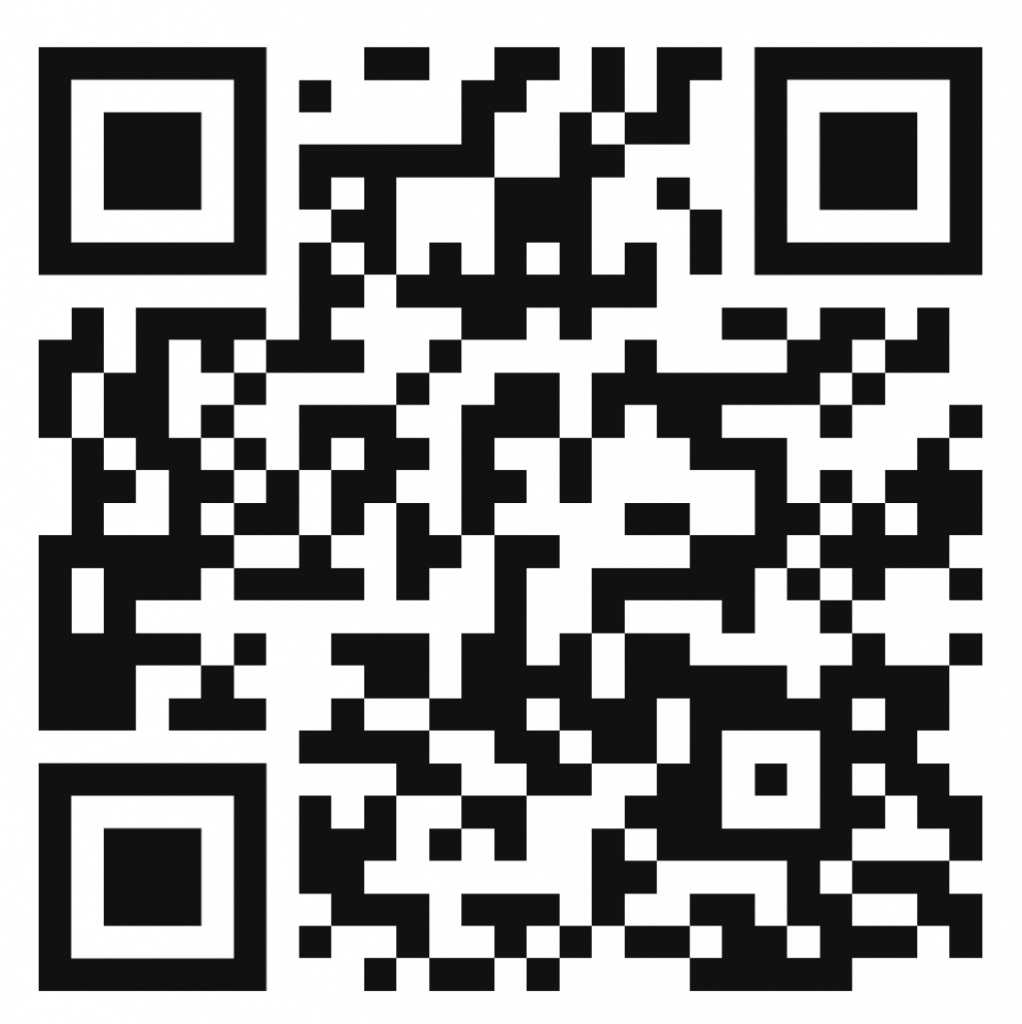
- Open the download link using your Android device.
- Locate the InventoryScanner file.
- Tap Download.
- Confirm the download when prompted.
- Wait for the APK file to finish downloading.
The downloaded file may be accessed through the notification panel, the browser’s Downloads section, or the device’s Downloads folder.
Installing the App #
- Open the downloaded APK file.
- When prompted, tap Settings or Allow from this source to permit installation from Google Drive, the browser, or the file manager being used.
- Enable Allow from this source or Install unknown apps.
- Return to the installation screen.
- Tap Install.
- Wait for the installation to finish.
- Tap Open to launch the application.
The name of the permission or setting may vary depending on the Android device. It may appear as:
- Install unknown apps
- Allow from this source
- Unknown sources
- Install apps from external sources
For security, you may disable this permission again after the application has been installed.
Granting App Permissions #
When the application is opened for the first time, allow the permissions required for its functions.
- Allow camera access so the app can scan barcodes and QR codes.
- Allow file or storage access when prompted so the app can save or export inventory logs.
- Allow other required permissions necessary for the application to operate.
If camera access is not granted, the live barcode and QR code scanner will not work. The permission may be enabled later through:
When the application is opened for the first time, allow the permissions required for its functions.
Settings → Apps → InventoryScanner → Permissions